Why Use an Online QR Code Generator?
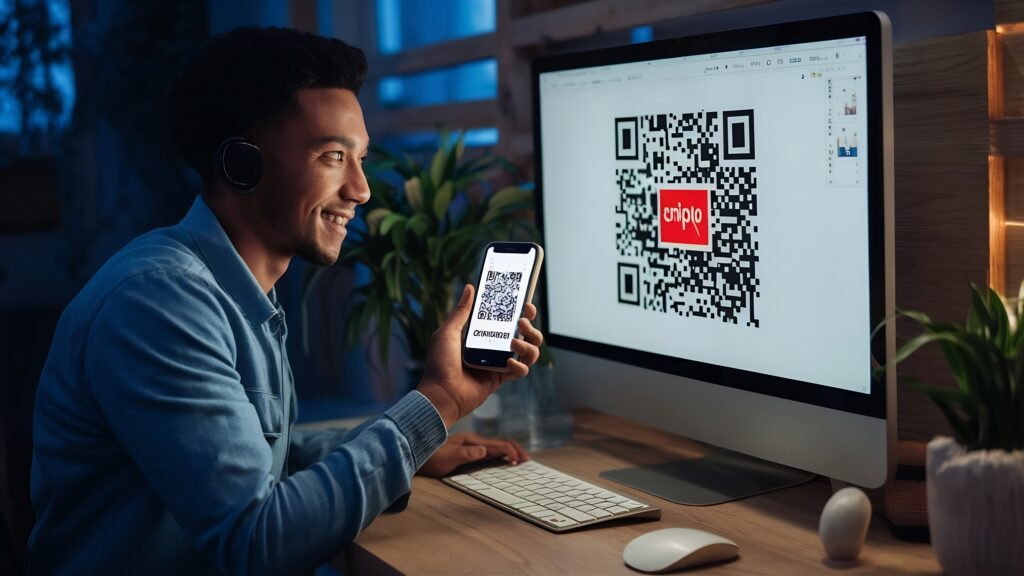
Online QR code generators make it incredibly simple to convert links, text, contact details, or payment information into a scannable QR code within minutes. You do not need technical skills or coding knowledge. These platforms automate the encoding process and instantly generate a ready-to-download QR image. Whether for marketing, digital menus, event registrations, or product packaging, online tools provide a fast and accessible solution for individuals and businesses.
Step 1: Choose the Type of Content
The first step is selecting the type of content you want your QR code to store. Most generators offer multiple options such as website URLs, plain text, phone numbers, email addresses, Wi-Fi credentials, payment links, or social media profiles. Selecting the correct content type ensures proper formatting and smooth user experience after scanning. This step defines what action will happen when someone scans your QR code.
Step 2: Enter Your Information
Once you choose the content type, enter the required information into the generator. For example, if you select a website URL, paste the complete link including https. If creating a Wi-Fi QR code, input the network name and password correctly. Accuracy is important because the QR code will store exactly what you enter. Even a small error in the link or contact detail can affect functionality.
Step 3: Decide Between Static and Dynamic QR Codes
Most online generators allow you to choose between static and dynamic QR codes. Static QR codes contain fixed information and cannot be edited after creation. Dynamic QR codes use a short redirect link, allowing you to update the destination later without changing the printed code. Dynamic codes often provide scan tracking and analytics, making them ideal for marketing campaigns and business use.
Step 4: Customize the Design
Customization options allow you to modify colors, add a logo, or adjust the shape of the QR code modules. While design improvements enhance branding and visual appeal, it is important to maintain sufficient contrast between the foreground and background for proper scanning. Avoid overcrowding the code with heavy graphics. A clean, high-contrast design ensures both attractiveness and reliable performance.
Step 5: Generate and Download
After entering your information and customizing the design, click the generate button. The platform will instantly create your QR code image. Most tools allow downloads in formats such as PNG, JPG, or SVG. For print materials, high-resolution or vector formats are recommended to preserve clarity at larger sizes. Once downloaded, your QR code is ready for use across digital or physical platforms.
Test Before Publishing
Before printing or sharing your QR code publicly, always test it. Scan it using multiple devices to ensure it redirects correctly and loads quickly. Verify that links open properly and that the user experience is smooth. Testing prevents costly mistakes, especially when printing large batches for packaging, posters, or promotional materials.
Best Practices for Better Results
Place your QR code where it is easy to scan and clearly visible. Avoid extremely small sizes that may reduce readability. Include a short call-to-action such as “Scan to Learn More” to guide users. Ensure stable internet access if the code links to online content. Following these best practices increases scan rates and improves overall engagement.
Final Thoughts
Creating a QR code using an online generator is a quick and efficient process that takes only a few minutes. With the right content selection, proper customization, and careful testing, you can build a reliable digital bridge between offline materials and online experiences. QR codes remain one of the simplest yet most powerful tools for instant information sharing in today’s connected world.